Showing posts with label time saving tip. Show all posts

Monday, 30 September 2013

Where to buy prepaid electricity from Eskom online with your credit card [Solved]

Here’s an updated posting offering alternatives to PayCity that has now stopped selling prepaid electricity.SolvedStamp

My previous article “Buying electricity via mobile cell phone or online” listed many ways of purchasing prepaid electricity online and with a credit card. 
Most online sites offer the service for free and you still get your free units per month.
I was looking for a service where I could purchase electricity (for no extra charge) using my credit card.
I wanted to be able to use my PC or my cell phone's browser or use SMS to purchase.

Using my credit card is much more convenient (no more queuing for cash, and for purchasing the electricity), and so it's safer too! [those ATMs are becoming dangerous]

Additionally, if I run out of electricity in the middle of the night then I can purchase more by sending an SMS from home.
Oh, and the cherry on the top is that the bill comes at the end of the month along with "reward points" and even cash back discount.

Here is an updated list of sites that I’ve found that cater for City of Cape Town electricity:
My preferred choice, after analysing all the options that I could find is Powertime.  Their offering seems the most complete, with apps for most mobile devices as well as a nifty web site with add-ons like virtual meter and a graphical analysis of your electricity usage, and lots of energy saving tips.
A couple of emails to their support email address relating to credit card fees were answered quickly and with the requested information (and more).
image Powertime’s web site warns that purchasing using your credit card could attract a fee “… between 0% and 5% VAT inclusive of the transaction value”.  An email query later, and I found out that this service fee depends on whether the municipality reimburses credit card costs or not.  It turns out that there is no service fee for Cape Town meters.  To be sure, send them an email with your meter number and they will confirm the service fee.  
Note that the purchase of electricity in Cape Town has to be done via SMS due to restrictions set by the municipality.
You can setup SMS vending on the Powertime website in: “Electricity” –> “Buy Electricity” –> “Set up SMS vending” section.
(EFTs are all free of charge. )

The service is available 24/7 via the following channels:
On these channels, you can use Visa, Diners and Master Card credit cards or the PayGenius wallet, which can be recharged by EFT or credit card. You can also use Debit cards as well on the Powertime Web site.
Twitter: @powertime_za and Facebook
You can also pay your other municipality bills and cellular airtime too.
imageYou can even make some money by referring your friends to Powertime – Login, then follow the “Refer a friend”  link to send your friend an email.  When they spend their first R350 on electricity, then you will get R30 in your PayGenius wallet :)

Here is some more info on Powertime: 
https://moneysmart.co.za/community/2012/06/save-electricity-and-save-money-with-powertime
http://ventureburn.com/2013/03/the-city-of-cape-town-cant-keep-a-good-startup-down-powertime-is-back


Another company that offers purchasing prepaid electricity online and using SMS is ItronEnergy.
image

FNB
mobile: dial *120*321# from your cell phone and navigate thru the menus.
image
https://new.easypay.co.za/bmeter.aspx image

www.ibuy.co.za you can save your setting so that you can easily buy from your phone (no fees, as far as I can see):
image

Other options:
EFT only - no credit card: PrePaid24.co.zaimage
MyPrePaid.co.za
PrePaidElectricityMeters.co.za
PrePaid24Galore.co.za
PrepaidXtreme.co.za
PrePaid24Online.co.za


http://www.cellpower.co.za/consumer
image 
No credit card purchases, but EFTs are processed under 5 minutes (24/7). Also offers airtime.

Wednesday, 19 October 2011

Buying electricity via mobile cell phone or online [Solved]

There’s only one thing that I hate doing more than putting petrol in my car – that’s buying electricity… the pain of drawing cash, then imagegoing to the local cafe or garage to get that electricity token is sooo painful!  But that was until I found other ways of buying electricity without even getting into my car :)
 
You still get your free units per month and there are no extra costs.

Most of these sites allow you to purchase using your credit card.

After registering I can now purchase electricity (for no extra charge) using my credit card. I can use my PC or my cell phone's browser or use SMS to purchase.
Using my credit card is much more convenient (no more queuing for cash, and for purchasing the electricity), and so it's safer too! [those ATMs are becoming dangerous]
Additionally, if I run out of electricity in the middle of the night then I can purchase more by sending an SMS from home.
Oh, and the cherry on the top is that the bill comes at the end of the month along with "reward points" and even cash back discount.


Here is a list of sites that I’ve found that cater for City of Cape Town electricity:
FNB mobile: dial *120*321# from your cell phone and navigate thru the menus.
image 

https://new.easypay.co.za/bmeter.aspx   image 

www.energy.co.za   image  (not accepting new registrations)


www.paycity.co.za  image  
(Via SMS: SMS "secret code cvv amount" to 41658 to buy electricity)

www.powertime.co.za [currently offline for Cape Town electricity purchases] register meter number and pay by credit card.
image

http://www.cellpower.co.za/consumer image  No credit card purchases, but EFTs are processed under 5 minutes (24/7). Also offers airtime.

www.ibuy.co.za you can save your setting so that you can easily buy from your phone
image 


http://www.prepaid24.com/index.php?comp=content2&page=electricity
image  There’s even a lucky draw and you could win your electricity for free (PowerWinna)


Outside Cape Town: 
http://www.prepaidelectricitymeters.co.za/# 
http://www.prepaidmobionline.co.za/municipalities.html

Saturday, 15 October 2011

Polycom IP SoundStation IP 5000 call lasts exactly 20 seconds and then disconnected [SOLVED]

A colleague had this nasty problem that he managed to solve – he found lots (hundreds) of people on the Internet had the same problem but there were no solutions out there – so I convinced him to share how he solved the nasty problem:

The problem:
Polycom IP SoundStation IP 5000 - calls last exactly 20 seconds and then they are disconnected.

The logs on the SwitchVox PABX showed the following error when tracing the SIP messages passing between PBX and Polycom IP 5000.  This is the error code that I suspected was causing the issue:

(Critical Response) -- See doc/sip-retransmit.txt

image image
It took a while, but changing the protocol that IP5000 uses to connect to the PABX from TCP/IP to UDP seems to have fixed the problem - now the calls work properly :)
It now also connects to the SwitchVox PABX immediately compared to previously when using TCP/IP it took at least 10 seconds. 
So now, once the phone is plugged in and boots up, it immediately connects and calls longer than 10 seconds are now no problem!

 
image

For others trying to figure out how to log onto the phone’s web page to change the settings:
use username (upper case ‘P’):  Polycom
and
password:  456 
(This is the default username and password)

Wednesday, 7 July 2010

Solved! Integrating Bugzilla with MS project 2007

I have been battling for weeks trying to integrate Bugzilla items with Microsoft Project, and finally I’ve got something working.  Truth be said, I had it working a long time ago, but suddenly it stopped working – so it somehow got broken.  I couldn’t figure out what had changed and it was driving me crazy – even my colleagues around me were starting to feel the pain and could see my hair getting pulled out!

Let’s start at the beginning, and explain what I needed and how I got it done:
BugzillaWe use Bugzilla as a bug tracking tool and with each release we need to figure out which features and fixes will make it into the next release.  While Bugzilla is a great fault tracking tool, it doesn’t have the ability (AFAIK) to show when all targeted bugs will be fixed.  In other words, it shows what needs to be done, but doesn’t show when they will be fixed by the assigned developers.

 
image We use Microsoft Project to show load on resources (levelling) and for release planning ie: which features and bug fixes will be put into the next release.  So, it’s obvious that importing Bugzilla’s bugs into the project plan will allow us to see what can be done, by who, and by when.

Entering the constantly changing list of bugs into MS Project manually is possible, but extremely tedious, so it becomes an impossible task.  I am still looking for an automated way of doing this… but, we’ve found the next best solution:

Importing Bugzilla into MS Project:
Instead of doing the manual update thing… the next best solution is to import the list of bugs into the project plan as follows:
*) In Bugzilla: change the bugs that need to be fixed in the next release to have a common TargetMilestone.
*) In each bug, update the “Hours Left” field to the estimated number of hours that the fix will take to resolve.  Note: the “Hours Left” field is only visible if the user is a member of the Bugzilla “timetrackinggroup”.  Add peoples’ logins to the group using the “Edit groups” page: eg: @yourcompany.com$|@gmail.com$image*) create a view that lists all bugs that need to be imported into the plan ie: all bugs with a TargetMilestone set to “EndJulyRelease” for component “Widget” that have been modified since 2010-06-01 (the last time the bug import was done).
*) Add columns to the results screen (use the “Change columns” link) to add columns that you want to import into the project plan.
*) Export the resulting list by clicking on the “CSV” link (at the bottom of Bugzilla’s results page).  Save the .csv file to your computer – this is the file that will be imported (actually, merged) into the project plan.

*) In MS Project: open your .mpp file, click File->Open, select the .csv file that was exported from Bugzilla; the “Import Wizard” will open.  Click “Next”, then “New map” and define how the fields (in the .csv file) map to the MS project fields as follows:  On the following screens select the following:  “Merge the data into the active project”, then “Tasks”, tick “Import includes headers”, then (in the “Task mapping” screen): Task mappingClick on the pull down arrows and map each field in the text file to each of the MS project fields.  The key to this import (and subsequent imports that update already imported bugs) is the “MERGE KEY”.  Make the bug_id field the merge key by clicking on the “Set merge key” button.  This will ensure that the next imports of the updated .csv file will not insert duplicate tasks, but rather update the project tasks as identified by the Bugzilla number.
*) Ensure that the “remaining_time” field from the .csv file is mapped to MS project’s “Duration” field, and “short_desc” to “Name”.
image *) Save the map so that subsequent imports will be faster since the saved map can be used to import the data.  Click “Finish” and the data from the .csv file will be imported into MS project.  Any existing tasks with a Bugzilla number in the “Text1” field will be updated, while new tasks will be add to the end of the MS project file.
*) Add columns “Text 1” thru to “Text 14” to your Gant chart, and by showing the Bugzilla priority field next (eg: Text5) to the MS Project’s “Priority” field one can see which tasks should have a high MS Project priority that can be used for levelling.

OK, so the above description shows the mechanics for integrating Bugzilla with MS Project, but what got broken?  What changed that was driving me crazy and making me pull my hair out?  The merging the .csv file stopped working – it just imported the Bugzilla tasks over the other project tasks – ie: somehow it was ignoring the merge key! 
I managed to isolate the problem by creating a new, empty project, then pasting the original MS Project’s tasks into the new Gant chart, then the merge of the csv file worked!
This led me to the cause of the problem: I found that by deleting some of the columns in the Gant chart fixed the problem and the merge worked again…

So, if your import of .csv file stops working all of a sudden, then you can try the two solutions above (create a new .mpp file or delete some unused columns).

Update on 16Jan2011: I have now upgraded my MS Project to MS Project 2010 (version 14.0.4751.1000) and the merge from the Bugzilla CSV file imports fine and there are no problems – so no need for me to use a new, empty project :)  Hoooray!
image

Update 23 March 2011: If you prefer to import Bugzilla bugs into a spreadsheet directly without having to do the following:
1) go to the Bugzilla web page,
2) open (or create) the view of the bugs you are interested in,
3) export the file to a .csv file or copy and paste it into an Excel spreadsheet.
In other words, if you don’t want to do the above each and every time you want an update, then this can be automated by using some Visual Basic for Applications (VBA) script in Excel that will download the content of a view via its CSV file, and display its content in Excel (almost like an API).  Omar BELKHODJA explains what to do – thanks for writing the blog post and for sharing!: http://blog.sos-company.com/?p=3

Saturday, 12 June 2010

I recommend these companies: products, services, deals, software

This is a living list of companies, services, software, and products that I use that I feel have given me gr8 service and value for money.
It will be updated regularly - what do you think of a blog page that does the opposite (ie: list services, and products that I have had bad service)?

Please add your recommendations in the comments below.
Web sites + services:
Tag the contents of your home for free: Tagga

Services in Cape Town:

Updated on 05Nov2011:
Pool renovation:
image
We got our pool re-marbelited (gunite) with Revelstone coping
I’m a very happy client, no unreasonable additional charges
Des Pollard: +2782 8964855 poll@mweb.co.za  (doesn’t do fibreglass)


Painters:  4 Lads & A Lady Painters (<--click and they will call you back)
Great service, gr8 prices, gr8 trustworthy team, neat, they do what they say, interior and exterior
glenwood@telkomsa.net,
+27 83 449 9900
+27 21 762 7536
image 

Photographer: we've used Gavin Withers for weddings, Bar Mitzvah, general family shoots - very highly recommended.  Awesome prices, fast, no very fast delivery of wonderful photos!:

SABIA National Wedding Photographer of the year 2010

Web:
www.gwphoto.co.za
Blog: http://www.capetownphotographer.za.bz/index.php 
Email: gavin@gwphoto.co.za
Cell:  0836580332

Blinds:
Bali (The House of Bamboo)
Gr8 service, gr8 prices, neat job, quick turn-around from order to delivery and installation.
Tel: +27 21 715 8552
Fax: +27 21 715 8554
22 Estmil Road, Diep River 7800
image

Software:
Total Commander: Windows Explorer, but 10,000x better!
Copernic Desktop search: the latest version of Copernic Desktop Search Home 3 has some very useful features disabled (until you pay for the pro version) – so, rather download and install an older version 2.3 from here: Copernic Desktop Search Home 2.3 build 18
Opera: Web browser with everything you need included
SnagIt: Screen capture utility
Quicken: Financial control at home and at your business
ClipMate: Clipboard extender
Windows Grep: Search for text in lots of files
DropBox: make sure you have all your important files from all PCs
TweetDeck: Great Twitter desktop client
VoipBuster: Cheap and high quality VOIP international calls (1st 120 days free for most major cities)
NimBuzz: Free Calls, Chat, Messaging and more on your mobile phone and desktop PC
CrashPlan: Free backup software, pay option for the cloud


Tuesday, 4 May 2010

Left your wallet at home, 30 Kms from home and need petrol–here’s how to get out of that pickle. Cell phone banking to the rescue

Here’s the problem: you’ve left home to go to work – luckily you travel to work in the opposite direction to peak traffic – hehe, what a win!  After 30Kms you breeze over that intersection with the longest queue (in the opposite direction of course), you notice your “low fuel” warning light go on and you realise that you have forgotten your wallet at home!  Horror of horrors… now what?  U-turn is definitely out of the question – there’s no ways the fuel in the reserve tank will last that peak traffic. 

So you have a few options:
1) Mozy over to the local petrol station and convince them to give you some fuel and offer to leave your cheap watch as a deposit;
2) Carry on to work and borrow some cash from friends at work… mmmm there must be a better solution;
3) Stop the car at the next robot and beg for some cash… mmm, I’ve always wondered how much those okes make at the robots;
4) Ok, Ok… here’s the best solution: luckily, you are an FNB account holder and you use cell phone banking – so you login and select the “Send Money” option.  Select the FromAccount, and amount, and cell phone number of the recipient (that’s you!).  Click finish and voila – you’ll receive an SMS with details:

image

Once you've received an SMS telling you that you have been sent money:

  • Dial *120*277# to access the eWallet
  • Set a secret 5-digit PIN for the eWallet
  • Select 'Withdraw cash' and then 'Get ATM PIN'
  • You'll receive an SMS with an ATM PIN
  • Go to an FNB ATM
  • At the ATM press the green button (enter/proceed) and then Wallet Services
  • Key in your cellphone number and ATM PIN
  • Choose the amount of money to withdraw.  Make sure that either your transaction has ended or that you press 'cancel' before leaving the ATM.

    So, can you believe it!???  Wallet is sitting at home and you can “speak” to an ATM and get it to spit out some cash – Wow!  Now that’s a solution… but remember, it’s still easier not to leave your petrol card at home!

    See here for more info: Send Money and eWallet
    Click here for a step-by-step guide on how to Send Money from all FNB channels and how to receive money.

  • As an introductory offer, until the 18th July 2010, you can send and receive money FREE of bank charges.


    Notes:

    HTT is not affiliated to FNB in any way – just a happy client trying to share tips so that readers may benefit ;)
    BTW, I haven’t actually tried to send money to myself – just had a nightmare about this the other day and thought up this idea for using this service.  Let me know if it is in fact possible to send money to yourself.


    Update: Tue 04May2010:
    Confirmation via Twitter from http://twitter.com/Rbjacobs: The official FNB Guy:  “@HandyTechTipper The eWallet allows FNB customers to Send Money to anyone with a valid SA cellphone number < more http://bit.ly/dslc3c

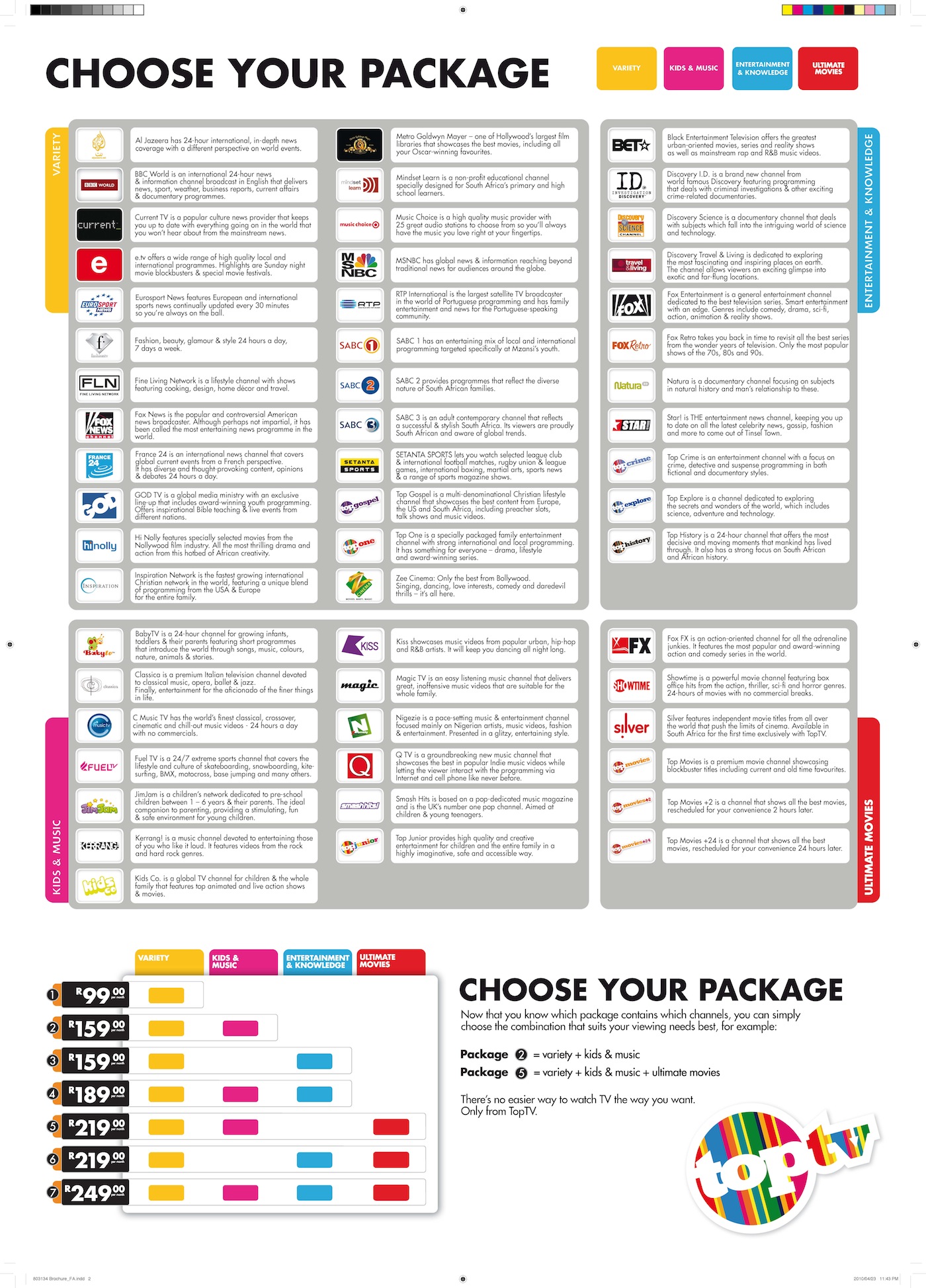
    Compare the TopTV and DSTV offerings (calculator)

    Here’s a quick posting on the newly launched TopTV – the new satellite TV channel in South Africa.  There’s a lot of activity on Twitter asking about the new channel, and how it compares with DSTV, so I’ve collated some info that I’ve found and also created a calculator so that it’s easier to compare what’s on offer by filtering what you are interested in and then seeing which company’s bouquet is for you.

    Download the calculator from here [1MB]:  Compare TopTV with DSTV Calculator

    How to use this calculator:
    Use the "DetailedCompare_TopTV_vs_DSTV" worksheet:

    Use the filters at the top of the columns to filter by channel name OR by price OR by bouquet to see how much you need to spend to get the channels you want
    For example: filter by "channel name" (column C): "Cartoon Network" shows that that channel is ONLY available in the DSTV Premium bouquet
    For example: filter by "Min cost for this channel" = R99 (column J): shows all channels available for R99, THEN you can see if it's better to go for DSTV or TopTV's R99 offering
    For example: filter by "bouquet name = DSTV Select 1" (column N): to see which channels are offered on the "DSTV Select 1 (R148)"
    etc....

    Interesting to filer using column J “Min Cost for this channel” set to R20 to see which channels you can get for R20 per month – not a bad deal
    Also interesting to see that Disney and Boomerang are only available on DSTV Premium – I hope your kids don’t have expensive taste! 
    Same for MNet, SuperSport 1,2,5,6,7, and RAI.
    Interesting that RTP International (Portuguese) is in the R99 bouquet – previously you would have to fork out R529 for DSTV’s Premium bouquet – are all the Portuguese people going to move to TopTV?

    I referenced the articles below while writing this article - go to these information sources for more detail (if needed):
    TopTV bouquets: http://toptv.co.za/bouquet
    Compare DSTV bouquets: http://www.dstv.com/dstvsa/content/en/sa/get_dstv
    DSTV Premium (R529): http://www.dstv.com/dstvsa/content/en/sa/products?bId=1
    DSTV Lite: http://www.dstv.com/dstvsa/content/en/sa/products?bId=24
    http://mybroadband.co.za/news/broadcasting/12247-DStv-Lite-versus-TopTV-R99-package.html
    TechCentral: TopTV launch: all the details: http://www.techcentral.co.za/toptv-launch-all-the-details/14115/
    Diagram of TopTV's bouquets: http://www.techcentral.co.za/wp-content/uploads/2010/04/Channel-Descriptors2.jpg
    Note: DSTV has Interactive channels (TopTV doesn’t). See here for more: http://www.dstv.com/dstvsa/content/en/sa/products?bId=1
    TopTV decoder+dish+LNB+installation: R499
    image
    DSTV prices EXcludes dish, installation and LNB
    High Definition (HD) PVR:
    Decoder Price: R2999*
    Access Fee: R60 (per month)
    (TopTV does not have a  PVR yet – due in Nov 2010)
    Standard Definition (SD) PVR:
    Access Fee: R60 (per month)
    Standard Decoder:
    Decoder Price: R499*

    Please add your comment regarding the calculator… corrections included.

    Update on Tue 04May2010: Heard on CapeTalk567 this am: beware of (DSTV and probably TopTV) installers that install the dish, decoder etc. and then charge thousands (up to R20,000) for PVR installations.  Ask for a written quote before any work is started – even if the installation costs are included in the deal!  Ask them to include any additions like: extra cable, connectors, amplifiers, fibreglass/steel dishes, etc, etc…

    Update on Thu06May2010: Remember, another satellite TV channel is starting in South Africa on 1st June 2010: Super5Media (previously Telkom Media)
    If this article is anything to go by, then it's not worth waiting for: "Super 5 Media will offer five local channels at launch in June, including a news channel and a music channel. Other details, including pricing plans, are not yet available."  Additionally, it seems that ICASA still needs to grant them a license.  #WTF!  Although they say that they will "go live on 1 June whether it has a network licence or not."

    Here's another article about TopTV: Problems at TopTV?

    Here's an excellent step-by-step guide on how to get TopTV

    Update on Sat08May2010: 
    Where to get TopTV?: At the moment these are the stockists: Pep, Game, Makro, Dion, selected Jumbo Cash & Carry stores, CCW, Brown's and Weirs, and House & Home, and Game and Pick ‘n Pay.

    Dummies guide to TopTVhttp://www.tvsa.co.za/default.asp?blogname=news&articleid=14182
    The Lowdown: Sport On TopTV: http://www.tvsa.co.za/default.asp?blogname=news&ArticleID=14184

    TopTV contact number 011 582 9802 extension 1001
    TopTV call centre number: 08600 TOPTV (08600 86788).  If all agents are busy, please leave a message Call centre is open between 08:00 to 18:00.

    Updated on Thu20May2010:
    Online TopTV guide: from TivoZA: instructions here: http://mybroadband.co.za/vb/showthread.php?233437-The-unofficial-TopTV-tv-guide   Direct link here: http://www.nantage.com

    Update on Sun23May2010:
    Looking through the TopTV user manual, on page 58 there's a line in the specification: "Anti-taping protection" that's enabled.  I've found some people complaining (on forums) that they can't record the TopTV programs on their VCR and DVD recorder.  See this forum for updates - pls add your comments here or in the forum and let us know your recorder's make and model (if it can record and if it doesn't)

    Update on Sat29May2010: Here are my experiences in getting connected to TopTV:
    OK, so, I finally got my TopTV decoder and installation done.  Decoder purchased on Sat15May; Took 20 minutes to get through to the call centre 08600 86788 to register;  They were supposed to email me a list of installers - that list never arrived :(
    I then went to the SatsRus.co.za web site (Develex) and requested an installation - but nobody called me :(
    I then called SatsRus on 021 554-4641 and booked an installation for the next day :)
    I was very pleasantly surprised when the 2-man installation team arrived and installed the dish and decoder on time :)
    They also didn't try to up-sell me anything!  No "take this better dish" or anything like that.  Neat, fast installation!  They even tried (unsuccessfully, but no fault of their own {sorry babes}) to explain how it all worked to my wife.
    They gave me client number details etc... that night the decoder was receiving TopTV in all its clear glory :) - and I hadn't yet paid for the monthly subscription.
    Today, I tried calling the call centre - the technical line took <5 mins to answer and I explained that the signal through my video VCR and DVDR HDD recorder machines were poor - they didn't tell me, but it's because of the anti-taping software.  They recommended running the RF cable directly from the TopTV decoder directly to the other TV sets.
    Another option that I found was to purchase this Grex gadget for $89+$10 shipping (arrives in 2 weeks at local post office).
    If you have an old DSTV decoder then try that before bypassing your VCR and DVDR (see below for more anti-taping "solutions")

    I called the call centre again to get payment details for TopTV: this time their sales option took less than 15 secs to answer :)  I got an EasyPay number so that I could pay by credit card BUT it didn't work on the www.easypay.co.za web site :(
    So, I called TopTV back (again answered in less than 15 secs) and I learnt that I can only go to Shoprite stores to pay - the Internet will work later.

    I decided to pay using EFT for now, here is TopTV's banking details:

    Bank: Std Bank
    TopTV Acc Nr: 252 315 553
    Type of account: Chq
    Account holder: TopTV
    Branch Code: 019205
    Reference: use your TopTV account number  eg: 0000 17xxx

    The first month's payment must include the pro-rata amount - that's the partial month's payment for the days you were connected.  So, if you were connected on the 20th of the month of May (which has 31 days) then the pro rata amount is:  ('bouquet amount'*11)/31

    Updated on Tue01Jun2010:
    See post by MagicFlame here: http://mybroadband.co.za/vb/showthread.php?229251-Macrovision-blocking-recording-from-TopTV/page4 that describes how to bypass the MacroVision noise:
    "I connected audio-out from TopTV decoder directly to HDD recorder's audio-in.  Then connected the RFout from TopTV decoder to an old MNet decoder's RFin, and from there via its Video-out to HDD recorder's Video-in and it works.  Proper recording to HDD in stereo!  Time-shifting is also OK, so I'm a happy camper for no money spent."

    Updated on Sat05Jun2010:
    @TopTV_Wiz @toptvsa #TopTV is painful now - plz turn off the anti-taping, I want2 go out &record a program to my HDD recorder #FFS
    Evidently, the trick to bypass the anti-taping didn't work for me :(  I tried the MNet video-out "trick" - but it didn't work for me :(
    Yeah, yeah, I can wait until Nov2010 for the USB port to be enabled BUT:  I  have a HDD recorder now (with no USB input).  Why must I wait until Nov, and spend more $s to get another large HDD?
    MeThinks my #TopTV (1 week) honeymoon is nearly over :(

    Updated on Sun 4th July 2010: 
    Whoopee successfully paid my #TopTV bill using credit card on the www.easypay.co.za web site. Get your "EasyPay  Number" from the TopTV call centre

    Updated on Sat31July2010: 
    Added a quick reference sheet listing the channels on TopTV: print it out and keep it close to your remote control.
    "ChannelNumbers" worksheet: use the filters to print a sheet so that you can quickly jump to the channel you want

    Saturday, 1 May 2010

    Free SMS 31050 to get Vodacom info: Current Balance Or Call Limit Is, Or How many Available Minutes You Have

    {From Vodaworld: http://www.vodaworld.co.za/showarticle.asp?id=1810)
    Or, do you prefer a dose of jokes and riddles every now and then? If you answered "yes" to any of these questions, you will love Vodacom's Keyword SMS service.  Keyword SMS is an easy-to-use service that allows Vodacom Service Provider customers to send keywords via SMS in an abbreviated format, to request information relevant to their package.

    How does it work?
    SMS the "keyword" to 31050.  You’ll receive a reply SMS with the requested information. You don’t have to call in and speak to a Customer Care consultant - the answers to your questions are right at your fingertips.

    Keywords available to Prepaid and Top Up subscribers:
    SS
    for Service Summary
    CS for Call Sponsor
    RH for Recharge History
    AB for Account Balance

    Keywords available to all Vodacom subscribers:
    OTA
    for Over the Air Settings
    ES for E-mail Service Status
    ACS for Adult-Content Status
    2YW for Two Year Warranty
    HELP for Help
    MENU for Available Keywords

    Keywords available to VSP Contract & Top Up subscribers:
    AB for Available Balance
    AB for Account Balance
    ADD for Address
    *AM for Available Minutes
    *AS for Available Seconds
    AT for Airtime Transfer
    BD for Banking Details
    CB for Current Balance
    *CL for Call Limit
    CS for Call Sponsor
    LI for Last Invoice
    LP for Last Payment
    MM for Used Multi-Media
    PI for Proposed Invoice
    RD for Random Riddle
    RJ for Random Joke
    *SB for Available SMS Bundle
    SP for Who is my SP?
    SS for Service Summary
    SUM for Summary
    UG for Upgrade
    VAS for Active VAS


    *Not applicable to Top Up subscribers

    What uses up the most electricity in your home or office? (calculator)

    This is the question everyone has been asking and I too have been wondering.
    I have created an “ElectricityUsageCalculator” (Excel spreadsheet) for you to calculate your usage and where you can make savings.
    In fact, in the quest for the answer I have taken the long path of reducing my household’s electricity consumption and I thought that I’d share this information…
    Before I get to the detail, I’d like to thank the following people/organisations/forums for sharing their valuable information:
    Talk Radio 702 Power Guide: http://www.702.co.za/power/usage_list2.asp
    Eskom’s Conserving Electricity page: http://www.eskom.co.za/live/content.php?Item_ID=274&Revision=en/0
    Saving Electricity 101: http://michaelbluejay.com/electricity/howmuch.html
    Why not pay those sites a visit?

    image
    If you do want to save electricity/money try these steps (in the order listed):
    *) turn down the temperature setting on your thermostat (mine is set to 40 degrees C) – you know when it’s set right by the amount of cold water that you need to mix when you’re having a shower…. If you’re mixing a lot of cold water, then you know that your thermostat is set too high – you need to turn it down (colder), until you are mixing no cold water (or little) in your shower.
    See here: how to lower your geyser's thermostat
    Heat loss will be small on modern (or geyser‑blanket clad) geysers and piping, but the lower the thermostat temperature, the lower the losses, and the lower the electricity that is used to get the water to the thermostat temperature.
    Comment from Dave on http://energycrisis.co.za/?p=56: “I turned my geyser down from 60oC to 50oC and saved 20% on my bill”
    *) use less hot water (ie. Install a low‑flow shower head [I have an RST low flow one], and shower quickly) to save electricity – the less cold water that your geyser needs to heat up, the less electricity is used.
    *) use the ‘Electricity Usage Calculator’ to see where you ‘spend’ your electricity.
    Download from here: ElectricityUsageCalculator02.xls image
    I was amazed to see that my main “culprit” was not my geyser, but in fact my swimming pool pump! [thanks Tim Truluck for pointing this out to me!]
    Instructions for using the calculator:
    Don't edit the shaded cells....
    Step 1) In the worksheet ‘PerHourCosts’: check the ratings (W) listed [column D] and adjust to your appliances' ratings;
    (Note which appliance is the most costly to run per hour)
    Step 2) In the worksheet ‘UsageCosts’: fill in the 'hours used per item per month' [column D];
    Note: 'Cost per item per month' - the high cost items is where you can save the most


     image 
     
    *) Use solar power to heat your geyser: install solar panels. If you are building a new house or if you replace your geyser, then install solar panels and a time switch.  A solar‑only geyser will heat up the water more slowly (note: the thermostat plays no role in limiting the solar‑only upper temperature).  Installing a time switch in a solar installation will: 1) ensure that electricity is not used on a sunny day (i.e. on a sunny day you would rather have a slower heating up of the water by the sun, rather than use electricity and solar to heat up the water faster); 2) ensure that electricity is used so as to guarantee that there is hot water early in the morning and, in late afternoon on cold/cloudy days.
    How do I find out how much electricity something uses?
    Adapted from “Saving Electricity 101”: http://michaelbluejay.com/electricity/howmuch.html
    Look at the label - nearly everything you can plug into the wall has a label that says how much electricity it uses.
    If the label only gives the number of Amps and not the number of Watts, then just multiply the Amps by 220 to get the number of Watts. (Amps x Volts = Watts. So a hot plate that uses 3 amps uses 3 x 220 = 660 Watts.
    Note that if a device is powered by a transformer (one of those great big plugs), then the transformer has converted the electricity from AC to DC, so you need to multiply by the DC voltage, not the AC voltage of 220. For example, if the device says "INPUT 9V, 0.5A", then that's 9 volts x 0.5 amps = 4.5 Watts.
    Another tip:
    *) Remember to turn off your ‘plug’ circuit breakers when you’re in “load-shedding” mode – this will ensure that your appliances are not connected to Eskom when power is turned on again – remember, when power is turned on again, there is usually a surge (over 220V) which could damage your appliances. Leave a light turned on, so that you know when power has returned, then turn your ‘plug’ circuit breaker back on again.

    {Note: This HTT calculator is also available from the article “Does a time switch on your geyser actually save electricity?”}

    Sunday, 28 March 2010

    Configuring ZenCart and PayPal: Error 10413 solved

    Now that PayPal is coming to South Africa, I figured that I’d upgrade my ZenCart site to connect to PayPal’s express checkout. 
    I enabled ZenCart’s “PayPal Express Checkout” payment module and started configuring the parameters.
    Oops, I needed to enter some API credentials – so I followed the instructions on how to get those.
    I upgraded my PayPal account to “Premier” level so that I could accept payments and get an ‘API username’ and ‘API Password’ and ‘Signature’, and pointed it to “Sandbox” mode.
    Sandbox mode? – yup, mmm… that should have got me thinking – but it didn’t. 
    image
    I then (naively) tried to process a transaction from my ZenCart using my real PayPal logins and got the following error “10002 Security error - Security header is not valid”.  That gave me further clues that I couldn’t use my real PayPal logins and API settings and use the “Sandbox” mode.  I needed to create new dummy accounts and logins and APIs on the sandbox.PayPal server.

    imageSo, I registered as a developer on the https://developer.paypal.com/ site and downloaded the “PayPal_Sandbox_UserGuide” and a few clicks later I was creating the sandbox parameters and users that I could use to test my shopping cart.  I created a few users with different accounts, in different parts of the world, with lots of money so that they could purchase to their hearts’ content.
    image
    image

    Then I got to the difficult part. I thought that it would be easy to go from the shopping cart to PayPal and process the payments – BUT, it wasn’t – sometimes the purchases went through fine – others it didn’t.  I didn’t realise that the small transactions worked fine – but not the ones over R1,000.  I kept on getting the error “10413 Transaction refused because of an invalid argument. See additional error messages for details. - The totals of the cart item amounts do not match order amounts.”  I Goggle’d a bit – but nothing really helped, until I found this posting by Levi Senft: “ZenCart and PayPal: 10413 Transaction refused because of an invalid argument. Solved!”.  The posting explains how the comma separator is the cause of the problems, as well as a fix.
    image
    I modified the paypalwpp.php file as directed and voila – it was solved.  No more error 10413 (that was really starting to haunt me!)

    I’m looking forward to many transactions facilitated by PayPal in South Africa.

    Update 07April2010:
    I’m not sure why, but I started getting the 10413 error again.  Perhaps I didn’t test the above solution thoroughly enough.  I Google’d some more and found this solution by “gmail”: http://www.zen-cart.com/forum/showpost.php?p=675592&postcount=62:
    PayPalZenCartError10413That seemed to work first time – but beware it’s not thoroughly tested.  You can download the modified paypalwpp.php file to save you some typing:  It INcludes both fixes described above  paypalwpp.php

    If this still doesn’t help you – then look at the log files: /includes/modules/payment/paypal/logs (ensure that the folder is writable (ie: chmod 777))

    I then had problems when shipping charges were included….
    The same problem as “Zubey” had here.
    Whenever tax was added to on either products or shipping. If tax is removed from both it all works fine.

    [ITEMAMT] => 0.20
    [AMT] => 0.20
    [SHIPPINGAMT] => 0.00 **** when this = 0
    [TAXAMT] => 0.00 & this = 0, all works fine ****
    [L_NUMBER0] =>
    [L_QTY0] => 1
    [L_NAME0] => TEST Product No.2 $0.20
    [L_AMT0] => 0.20

    A bit more searching found me this article:
    From http://www.zen-cart.com/forum/showpost.php?p=531979&postcount=7
    and I changed these settings and it worked:
    Config->My Store-> Basis of Product Tax=Shipping and Basis of Shipping Tax=Shipping
    and in Module->Shipping (for each shipping module set): Tax Basis = Store

    I hope this is the last time I say that “it’s working” and it isn’t!

    Friday, 26 March 2010

    Connecting your laptop to your TV (make your own 7 pin SVideo to RCA cable)

    Following on from the article describing how to make a 4 pin SVideo to RCS cable, Anonymous requested the cable for a 7 pin SVideo to RCS cable.  So here are the instructions… note, I haven’t tested this – just info that I’ve put together from the http://www.allpinouts.org/index.php/S-Video_7_PIN site. 

    So, if you have a laptop with a 7 pin S-Video output and want to watch a DVD on your TV (that didn’t have an S-Video input), here’s how to make your own cable (and save about R150). 
    See below for the wiring – you’ll need a ceramic capacitor in the wiring.
    Remember, the S-Video plug does not “carry” video signal and the audio – you will need 2 cables: 1 for the video (this one) and another for audio.
    image {Thanks to www.allpinouts.org for the images and diagrams pasted below !}

    Video cable:

    Here’s a 7 pin S-Video plug: image (plugged into the laptop’s S-Video output, and the TV end soldered onto a RCA jack and plugged into the video-in socket on the TV)

    Here’s the RCA plug: image  

    Here’s the wiring of the S-Video to RCA cable:
    image

    Pin S-Video

    Description

    Pin RCA

    1

    GND Ground (Y)

    Ground

    2

    GND Ground (C)

    Ground

    3

    Y Intensity (Luminance)

    Signal

    4

    C Color (Chrominance)

    Signal through 470pF Ceramic Capacitor

    5

    - -

    - -

    6

    V Composite Video

    - -

    7

    VGND Composite Ground

    - -

    Notes (from allpinouts.org):
    * Those 7 pin connectors seen on some PC graphics cards are non-standard connectors for carrying S-video.
    * Generally the first four pins on those 7-pin connectors on the same places as the standard four pin S-video connector have practically always the same functionality as those pins in S-video connector.
    * The other three pins can have then some extra signals which are not part of S-video (usually some pins of those carry composite video and some control signals, but the use of those three extra pins vary quite much).

    * Larger capacitor values will also work, but cause picture to become "softer".
    * The impedances and signal levels not matched exactly right, but near enough to work acceptably.


    image
    Audio cable:
    The audio cable had a small stereo jack on it and plugged into the laptop’s headphone jack, and the TV end had two RCA male connectors and plugged into the audio-in (“Left and Right”) sockets on the TV.

    www.allpinouts.org
    While investigating this article I Googled into www.allpinouts.org which is an absolute mine of valuable information regarding pinouts of cables and connectors for all sorts of devices.  If you need to know how to wire up a connector or cable, then www.allpinouts.org will be your last stop!image

    Monday, 1 March 2010

    Getting GMail from multiple computers: “Recent” mode

    I often set up peoples’ computers to fetch their GoogleMail from multiple computers (eg: home and work).  They don’t want their home PC to remove the email from the server so that their work PC doesn’t see the emails any more.  I found this post describing what to do: Using POP on multiple clients or mobile devices
    image
    Gmail's 'recent mode' makes sure that all messages are made available to each client, rather than only to the first client to access new mail.

    Recent mode fetches the last 30 days of mail, regardless of whether it's been sent to another POP client already.

    Setting up 'recent mode':
    In your POP client settings (ie: in your email program on your PC), replace 'username@gmail.com' in the 'Username' or 'Email' field with 'recent:username@gmail.com'  (leave out the 's)

    Sunday, 28 February 2010

    Nokia 6110 giving ‘out of memory’ problems

    My pet hate about my Nokia 6110 Navigator is the amount of memory (RAM) that it has.  I often need to run more applications at the same time eg: Navigator for where I’ve got to go, Internet browser, and GMail to see where I’ve got to go.  Opening these apps at the same time is impossible (I get an error “Memory full. Close some applications and try again!”), and I’ve got to close one of them to get to the other.

    image
    I really wish Nokia had packed more RAM into this phone :(

    Another memory problem that I managed to solve (sort of), was a problem with the on-board 40MB phone memory (the C drive).  It also has a microSD memory card (the E drive) that I have upgraded to 4GB… but I’m referring to the on-board phone memory.  Here are some tips to ensure that the on-board phone memory doesn’t get full again: 
    1) Install all applications on the microSD card (E drive) – I have uninstalled most of the apps that I had installed on the C drive and reinstalled them on the E drive.
    2) Messaging: move all messages to E drive: It got to a point that I could not receive SMSs and I had to continuously delete SMSs and then turn off my phone to force Vodacom to send me the new SMSs.  Now that was a real pain!  So, this post by Vaibhav Sharma helped me to figure out how to move the SMSs from C drive to E drive (microSD card):
    Change your default ‘Messaging’ memory to the microSD card (E drive).  To do this, go to ‘Messaging’, then Options>Settings>Other>’Memory In Use’.  {Now that must be the most well-hidden menu option in the entire Universe!}  Select the option to copy all messages to the E drive and then ‘yes’ to delete the messages from the C drive.  Now, all old messages and future new messages will be stored on the microSD card (E drive) and the phone’s memory will be left for Nokia’s native applications.

    Saturday, 9 January 2010

    Cheap International calls from South Africa using Calling Cards (no computer necessary): another HTT calculator to compare offerings

    Yes, I’ve blogged about VOIP and SkypeOut and VoipBuster and NimBuzz and Fring and Dect-to-Voip but all of those require a computer or cell phone, and Internet connection (preferably ADSL or 3G/Edge).  Some of my readers and friends have asked for a much simpler way of making international calls and save money – in fact they are already using calling cards
    Calling cards are more expensive than using your ADSL connection (probably slightly more than paying for the data charges on your cell phone unless you have a data bundle), but the low cost (relative to Telkom), simplicity and convenience of using a calling card from any phone is a very good option for a lot of people.

    This blog article attempts to find a few services that are available in South Africa and compares their rates:

    (Please note that I haven’t tried any of these web services, although I have purchased some physical calling cards from ‘Talk Time’;
    Also, rates are taken from the services’ web sites and might differ from their actual charges;
    Don’t forget to consider the costs of the local call to the calling card’s local service number (that’s the cost of the Telkom call) – call at Call-More-Time {weekends and on weekdays: after 19h00 to 06h59} else get a Telkom ‘Closer Plan’)

    image image  imageimage  imageimage
    image  image

    Please note that HTT has not tried any of these services so cannot guarantee their services at all.  Quality of call, and rates might not be as depicted on their web sites.

    Download HTT’s calling card calculator – download and read the “ReadMe” worksheet for instructions: HTT’s PhoneCallingCardsRatesCalculator
    Note: the spreadsheet also compares VoipBuster and SkypeOut rates – did I say that VoipBuster rocks??!!! 
    That DECT to VoipBuster solution is really convenient too :)


    image
    HelloHowzit: is dedicated to provide a low cost, high quality phone service offering discounted overseas international telephone calls.

    Phone IT also known as: http://www.hellohowzit.com or http://www.phonehome.co.za 

    They sell international phonecards for inexpensive international calls.  I think this is the service that provides the “Talk Time International Calling Cards”. 
    Access numbers are: 011 - 232 9792 or 011 - 555 9600 or 021 – 673 6730

    They also have a dial through service using the 087 8063555 access number, which is useful if you have free cellphone minutes to use up.

    International phonecard rates start at R0.36 to most land line destinations. See the website for a whole list of countries.

    Free R50.00 signup bonus on new South African call-through accounts!
    This offer is valid for a limited time when opening a new R300 account.


    image
    The CARE project calling cards:
    Make Free International Calls from you mobile or landline and support The C.A.R.E Project.  Save time and energy by using our free service and pay local call rates.  Use you mobile free minutes to effectively make free calls to overseas destinations. YES... It's FREE and support a charity organisation as well!

    C.A.R.E (Caring. Assisting. Reaching. Empowering) is a non-profit organization formed to combat poverty and assist those less fortunate in realizing their potential towards self-empowerment.  The organization aims to do so by providing food and other products to poverty stricken communities, and advocating programmes for self- development and sustainability.


    Dial the local access number (010 590 4444) and make free calls to over 60 countries. It's that SIMPLE!
    Cellphone free minutes do apply, no PIN required, pay local mobile or fixed line rates.

    All profits will be used to fund their social development projects which include:
      *) Funding and support of an orphanage
      *) Homeless feeding schemes
      *) Other social development projects to be initiated

    1. How does it work ?
      i) Dial our local access number, 010 590 4444
      ii) Wait for the voice prompt
      iii) Dial your Destination number follows :
             00 <country code> <destination number>   e.g    00 44 207 3457654  (UK London)

    2. What's the catch ?
    Well... There is no catch.  You dial our access number, we obtain rebates from the service providers and the profits are used to fund social development and charity projects.

    3. How much does it cost ?
    Calls to global destinations are FREE!

    Calls from your mobile provider depends on local call rates available on the package you have subscribed to.
    Free mobile minutes may apply. This is not a premium rated service and you will be charged at local cellular rates to call our access number.  Peak and off peak rates apply thus determining the Free destinations available.

    Calls from your Telkom landline to our access number are charged at R0.78 per minute during peak hours and R0.40 during off-peak.

    4. Do I need a PIN number ?
    NO. You do not require a PIN so call at your convenience

    HTT comment: excellent rates to a limited list of 127 countries (and some cell phones).


    image
    Telesaver Phone Cards

    http://telesaver.co.za/pricing.htm

    HTT comment:
    Excellent per minute rates BUT, beware: the cards expire: R50 expires 6 months after first use.  R20 expires 1 month after first use.  Recharging makes a card last for an extra 6 months per R50.
    The rates listed are awesome!  Some are even better than VoipBuster!


    image
    HippoCom allows payment by credit card.
    The International Pre-Paid Calling Cards are available in R25, R50 and R80 denominations. These cards allow you access to all our international destinations at the lowest prices.

    Access Numbers: 031-251 8100 and 031-765 2248

    See here for their FAQs: FAQs


    image  
    Phone4You allows payment by credit card.
    Web site is (still) undergoing an upgrade but shows the rates and compares them with Telkom rates (and % saving).

    Updated on 09Jan2010 @ 17h00: added WorldChat and SunDial telecom (and updated WorldChat to calculator .xls)
    {Didn’t change the verdict tho)

    image
    WorldChat: allows payment by credit card
    Calls are billed per minute.

    Denominations of airtime: R25, R50, R100, R200

    Please note all cards expire within 90 days of initial use.
    R200 cards will expire 180 days after initial use

    A trick: to add another 90 days credit to your expired card & have access to your expired airtime, recharge online.  Even by recharging with the smallest denomination (R25 for which you'll only pay R22.50) you will get access to your expired credit as well as the extra credit you have recharged by!

    Access numbers:
      *) Durban     031 2048090
      *) Johannesburg     011 2312800
      *) Cape Town      021 4871040
      *) Tollfree (but rates per minute to International countries is higher): 0800 1WORLD (0800 196753)


    image
    SunDial telecom:
    Per minute charge varies according to the calling card denomination that you have purchased – the more expensive the card, the lower the per minute rate.

    The advertised web site is not working: http://www.calltheworld.co.za/ rather use: SunDial telecom

    Access numbers:
    Nationwide Share Call 0860 104649 – you pay for a local call (to Telkom) – this is NOT toll free.
    CellSave 087 941 5000

    Cape Town 021 402 0164
    Johannesburg 011 252 1157
    Pretoria 012 313 6930
    Nelspruit 013 752 9524
    Vereeniging 016 420 6447
    Klerksdorp 018 406 2018
    Rustenburg 014 590 2002
    Standerton 017 727 8261
    Kimberley 053 838 2040
    Bloemfontein 051 411 0781
    Durban 031 582 8218
    Port Elizabeth 041 397 9805
    East London 043 700 3005

    Calls can be made to the 087 Cellsave access number from your cellular phone to use your free minutes (you receive a 30c discount on the per minute rate.) 
    All calling card and subscriber calls made to the Toll Free access number (you don't pay local call charges)

    See here for rates: SunDial telecom rates


    HTT verdict: based on a random selection of countries (listed in the default filtered list in the spreadsheet) it is obvious that the Telesaver International Phone Card rates are the best – but, if you don’t use up your card within the expiry time, then you will lose your money! 
    {R50 expires 6 months after first use. R20 expires 1 month after first use. Recharging makes a card last for an extra 6 months per R50.}
    Don’t forget though, if you have ADSL, then VoipBuster is the best and cheapest!

    Some tips: BEWARE of services that have 0861 access numbers – the rates are probably cheaper BUT they get a kick-back from Telkom per minute of the LOCAL call costs (to the calling card’s access number).


    Here’s an excellent (although a bit dated) article from ‘Personal Finance’: Ten ways to cut your phone bill

    image

    Live Traffic Feed


    Be notified of
    page updates
    it's private
    powered by
    ChangeDetection

    Copyright © 2008 HandyTechTipper. All articles are released under the Creative Commons Attribution 2.5 South Africa license, unless where otherwise stated.