Showing posts with label Android. Show all posts

Sunday, 19 October 2014

Samsung Galaxy S4 WiFi “Unable to obtain IP address” problem [SOLVED]

I have managed to solve a colleague’s problem with his Samsung Galaxy S4 phone on his home WiFi network: Error “Obtaining IP address”, then error: “Failed to obtain IP address”.

The problem appeared after he had installed a WiFi range extender device in his home.  All other devices like iPhones, iPads, Blackberries were “happy” and connected to the now (very) extended WiFi network without any problems and with greater range in the house.  So, for them, the problem of no coverage in their bedrooms was solved.SolvedStamp

The initial connection was successful for a few hours (and sometimes for a whole day), but then the connection was dropped and the S4 phone was unable to connect and showed an error: “Unable to obtain IP address”.  A restart of the TP-link extender usually fixed the problem for another (short) period of time.

Main ADSL router: Billion BIPAC 7300G/NA
Security: Security: WPA2-PSK (AES), AES-CCMP
WiFi extender: the TP-Link TL-WA850RE (EU) Ver: 1.25 {great device, by the way – and the after sales support team is fast and friendly}
S4 phones: Samsung Galaxy S4 GT-I9500
Android version: 4.4.2

Debugging steps:
1) I took the the WiFi extender to a friend’s house to test with the S4s and iPhones – all seem to be connecting well with no “Unable to obtain IP address” problem on the S4 – the duration of this test was too short, so I couldn’t really isolate the problem.  In fact, the friend also decided to buy one of those TP-Link extenders for themselves.
2) Change the channel to another unused channel – I used the Android app “WiFi Analyser” – this is a great free app and it has helped me extend the range of many-a-friend’s WiFi signals by reducing interference from nearby signals: https://play.google.com/store/apps/details?id=com.farproc.wifi.analyzer
3) I changed the TPlink extender to have a different SSID from the main WiFi router – this is not ideal as I want the devices to auto-switch between the APs (Access Points) – this was a good workaround – but not ideal – and I wanted to get back to using the same SSID in the WiFi extender as on the main WiFi router.  So, reverted back to the original configuration of having a single, seamless SSID for the main WiFi router and the TPlink extender.
4) I contacted the friendly support team at TP-Link – they too were unable to solve the problem (they suggested many of the steps below)
5) I changed the config on the main WiFi router to give the S4 phone a fixed IP address.
6) I borrowed another brand new S4 phone – it had the same problem!
7) I changed the config on the main WiFi router to give the TPlink extender a fixed IP address.
8) I reset the TPlink WiFi extender (to factory default settings) and reconfigured it.
9) I looked at the TPLink system log files (system tools->system log) when the S4 failed to connect to WiFi.


So, what was the solution?: After Googling a lot, I found some explanations describing how some old WiFi routers were released before the final WiFi protocols were defined – and suggested upgrading the WiFi router’s firmware.  This wasn’t applicable to the Billion router, because there was no new firmware on the manufacturer’s site Sad smile
I then found a forum that had the answer: a user called “Slug” suggested “…then the problem is most likely to be with your home Wi-Fi and not the handset.  Check that your Wi-Fi router is running the most recent firmware, and also that it's using AES rather than TKIP encryption as I've had problems with several different Android devices connecting to APs using the latter.”
Another user called “Soooperpotatonoted:

…S4 works fine except for WiFi.  I noticed a limit of a 4Mbps download speed (upload is fine) when using WPA2-PSK (AES) or (TKIP/AES) security modes on my router.  All other 802.11n phones and computers in the house are hitting around 30+ Mbps download on this setting.  However, when I set the security mode to the older WPA2-PSK (TKIP), I get speeds at about 20 Mbps download on my S4.  This is an improvement, but now using TKIP I've limited all other devices in my house to 802.11g speeds instead of the faster 802.11n speed that AES uses.

So, I decided to check my router’s security WPA2 algorithm, and sure enough it was set to AES – when I changed it to TKIP, then the connection problem went away.  I was hesitant to say it was fixed until after I waited for 2 or 3 days… and sure enough, it has been at least 4 days now, and that error “Obtaining IP address”, and “Failed to obtain IP address” has not reappeared Smile

So, even though Soooperpotato says that the speed is only 20Mps instead of 30+ Mbps, I’m happy with the stability.

So, if you are having this problem, go to your main router’s Wireless LAN settings page, and change the router’s security WPA2 algorithm from AES to TKIP: image

Thanks again to the TP-link support team for trying to assist – I hope this information will also help them to help their customers.
image
Also, I found out that the TP-Link extender has an Ethernet port that allows the Extender to function as a wireless adapter to connect wired devices – this means that if you have a device (like a TV) that doesn’t have WiFi, then you can plug its LAN connection into the extender and the TP-link device will then connect over WiFi to your LAN.

image


image


I purchased my TP-link WiFi extender for only R359 (with free delivery) from here: Take-a-lot.com

Tuesday, 2 July 2013

How to setup MyPhoneExplorer on Samsung Galaxy S4 – SOLVED!

Trying to connect your Samsung Galaxy S4 to your computer’s USB port so that you can use your computer’s keyboard can be an irritating experience.  (See here for my original article on how to Control your Android phone from your PC)

The error that I kept on getting was “Connection to phone could not be established: No device connected to USB”.  I had been successful previously connecting an older phone to MyPhoneExplorer (MPE), but it seemed that the new S4’s Jelly Bean 4.2.2 operating system wasn’t too kind when it came to connecting.

I Googled a bit (no, really a lot this time), and found some interesting articles which eventually got the problem solved

There are a few checks that I needed to do – as listed here: http://forum.xda-developers.com/showthread.php?t=2144709  The main check points are the following: 
1) Install the latest version (1.8.4) of MPE from here: http://www.downloadbestsoft.com/MyPhoneExplorer.html
2) Check what version of adb (=Android Debug Bridge) you have installed by opening a command window and typing the following:  cd C:\Program Files (x86)\MyPhoneExplorer\DLL\adb.exe   and then  adb.exe   version     If the version displayed is 1.0.31 or later then you should be fine.
SolvedStamp image

2b) If an earlier version is present on your PC then download this file, unzip the files and copy them over the files in this folder:   c:\Program Files (x86)\MyPhoneExplorer\DLL

3) Now you need to put your phone into Developer mode, then also turn on “USB debugging” mode.  This is a pretty well hidden “feature” in the Android OS:
3a) Using the Settings menu, then "More" tab, and then Software information.
Then look for "About device" at the bottom. Tap it.
Then tap the build number seven times.  You'll get a little prompt saying you're about to unlock the developer settings. Hit that button one final time -- seven! -- and they're unlocked.
{Thanks to this article for helping me find it: http://www.androidcentral.com/how-get-developer-settings-galaxy-s4 }
That tapping also UnHid another menu option “Developer options

3b) Now to turn on the USB debugging option: in Settings->More->”Developer options” tick “USB debugging”

4) Now plug in the USB cable and startup MPE. 
then File->Settings and “connect via USB”
image
then File->Connect to connect via USB… hopefully, the connection is successful and you can use your PC to control your Samsung S4 Android phone.

Let me know if it works for you!

If it doesn’t then here’s a more complex, but more complete set of checks for you: http://www.androidsim.net/2009/08/how-to-1-how-to-install-usb-driver-on.html

Saturday, 26 January 2013

Installing Waze on an Android 2.1 phone [Solved]

So, I found an old Android phone and wanted to set it up with all my favourite apps, but I was upset when Waze wouldn’t install from the Google PlaySolvedStamp store – the app store told me that the app was “not compatible with your device” :( image
Now, if my sense of direction was good then I wouldn’t need this awesome all to help me get around… so, I tried a bit harder and after a bit of Googling I found a link which mentioned a download for my specific phone: Freeware4Android:
image
I opened the browser on my phone and clicked on the link and the file download started.  When it was complete I clicked on it and (to my surprise) it started to install :)  After the celebrations I started the app and it installed fine!

image 


Click here to download Waze for Android version 2.1: http://www.freeware4android.net/vodafone-845-device-1569/waze-get-15899.html

image

Saturday, 1 December 2012

Sign-in error for name@gmail.com on Android device [SOLVED!]

All of a sudden logging in to my Google Play account was giving an error and I seemed to be locked out!  Bad situation to be in – I couldn’t upgrade any of my apps – and I needed to do an upgrade because WhatsApp had expired – with error “This version of WhatsApp is too old – you need to upgrade”… OK, but I first needed to solve the error “Sign-in error for name@gmail.com”.

I Googled a bit, then a lot more but nothing worked - then I decided to try something out – I changed the language of my account – I noticed that it wasn’t set to anything.  I logged in to my Google account, then clicked “Account” and saw the “Default languages”: 

image
I changed it from “Select a language…” to English (United States):
image 
Then I tried to login on my Android phone and to my absolute amazement I was logged in :)  No error, just logged in.
I could then switch to the WhatsApp upgrade warning message and update to the latest version – problem solved!
This is one of those out of the blue, accidental fixes that somehow worked… I was amazed and I hope this helps someone out there – please let me know by adding a comment.

SolvedStamp

Wednesday, 1 February 2012

Control your Android phone from your PC

I have been playing with an Android phone and decided to try and use a real keyboard rather than the (small) touch screen virtual keyboard.  I found a wonderful tool that allows you to take control of your Android (or SonyEricsson) phone.  It is called MyPhoneExplorer and connects to your phone via USB cable, Bluetooth or infrared. So, I can now send WhatsApp messages using my real keyboard… and more:
image
You can also use it to sync your contacts (address book) - with direct sync to Outlook, GMail, Windows contacts, Thunderbird, SeaMonkey, Lotus Notes and Tobit David
You can also use it to sync your calendar and direct sync to Outlook, Google, Sunbird, Thunderbird, SeaMonkey, Windows calendar (Vista), Rainlendar, Lotus Notes, Tobit David and net shared calendars (WebDAV, FTP, local)

You can also use it to send SMSs and also back them up to your PC.
There’s a file browser with a cacheing system to minimize data transfer.
The phone’s date and time are also sync’d to Internet time and more.

See here for the software (and why not donate some $s too) [4MB]: http://www.fjsoft.at/en/downloads.php

To use your computer’s keyboard: Install then once connected go to the “Extras” menu option and select “Phone keypad”:

clip_image002|

This is what my phone looks like on my PC:
 image

Monday, 29 August 2011

Walkie Talkie on your phone: Push To Talk (PTT) using data channel on any network in South Africa

Use your BlackBerry or Android phone or PC to instantly talk to a group of users – just like using walkie talkie radios!  All of this for free (just pay for the bandwidth)!  I suppose you could call it a VOIP app, since the voice does get converted to IP packets – but what’s different with this app is that the voice gets transmitted to a group of people and it comes over their phones’ speakers – like an intercom system!

This app is available for download from here: http://loudtalks.com/download and best of all it’s FREE.  This allows public groups of up to 100 people – if you want to create private groups, then there’s the “Loudtalks Mesh or “Loudtalks Cloud” products. 

The Cloud product is free to try out for up to 10 users, then there’s payment options to go larger groups up to 1,000 people. 
In short, if you have your own server, then go for the Loudtalks Mesh option – else Loudtalks Cloud – which doesn’t require a server and is very quick to set up.
See here for a comparison:  http://loudtalks.com/compare_products

image 

Some of the features of the app are:
Loudtalks conversations are nearly as fast as face-to-face and possibly the fastest way to communicate online.
With Loudtalks you can voice message two, three or even a hundred people simultaneously.
Re-play your conversations when you want from the voice history.
Unlike traditional VoIP applications you don't have to use a headset with Loudtalks.
Loudtalks works over WiFi and 3G, and can be used on GPRS and EDGE.
Touchscreen-friendly
Real-time, low latency
Public channels
Voice-activated transmission (VOX) support

Currently, the app is available for BlackBerry and Android phones as well as PC (Windows and Linux using Wine):
BlackBerry - point your phone to: http://loudtalks.com/bb Note: that it does not use BIS – so if you are not using WiFi, then you will pay for the bandwidth used.  Depending on your wireless provider and service plan using the app may cause data charges even if you have "unlimited email and browsing" BIS data plan.  The app uses 110kB per minute talking, and 20kB per hour when idle.  Regardless of your service plan you can always use the app on WiFi for free.
Android: http://market.android.com/details?id=com.loudtalks 
PC: http://loudtalks.com/download
iPhone: iOS version will be released later this year (2011)

How to get going?:
Install the app then create an account and username,
then add contacts – once approved,
then you can try talking by pressing the PTT button (for BlackBerry it’s the convenience button on the LHS of the phone; for Windows it is F7) – keep that button down to talk, and release it to listen.  

You can also create your own public channels that other people can search for and join.

I’ve tested the application with Vodacom in South Africa and has worked with WiFi and the Vodacom network on BlackBerry 9700 Bold and 8520 Curve.  
Users with 3G handsets should enable the WAP2SR in the Options->Connection menu – this will reduce the high battery consumption.

If you get stuck, here’s a FAQ for BlackBerry users: http://loudtalks.com/bb_faq

Let me know if you have managed to successfully use the app – and for what purpose.  I am going to suggest this for the local neighbourhood watch in my area.

Follow LoudTalks on Twitter here: http://twitter.com/loudtalks

Other similar apps that I’ve found are:
http://hipvoice.com/pricing Blackberry and other “rugged devices”, and not free
http://blabbelon.com Windows and iPhone
http://heytell.com Android and iPhone
http://voxer.com iPhone (soon Android)
http://www.itikl.com Android and iPhone (free)

Monday, 21 March 2011

What’s the cheapest cell phone to run WhatsApp on?

My young son wants a cell phone – he’s got R1,000 to spend.  So, what’s the cheapest phone that can run WhatsApp so that he doesn’t waste all his airtime on SMSs and calls that could be handled by a short instant message?  Here’s my story on how I bought his phone brand new Android phone for R849 incl. VAT and everything else.

I did a lot of hunting around for Nokia phones and even looked at the LG and Samsung offerings – but all the phones that I could find in the WhatsApp minimum requirements list cost over R1,200.

I then looked at the WhatsApp download page and realised that I was overlooking other types of phones that WhatsApp supports: iPhone, Android, and BlackBerry.  I ruled out iPhone and BlackBerry due to cost, but that left Android – I hadn’t looked at any Android phones except HTC devices – but perhaps there was an entry level Android phone below R1,000?
The WhatsApp download page specifies that it can run on any device with Android OS 2.1 or above.

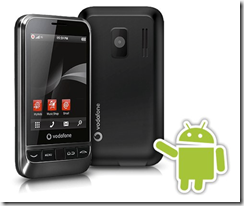
I Googled a bit and found references to the Vodafone 845 as being a great phone.  It was launched on South Africa in Aug 2010
It is a branded version of the Huawei “Joy” handset.
Here’s a great review on www.androidza.co.za and also shows “what’s in the box”: Battery, USB Cable, Wall Charger, Basic Manual, Headphones.
image
It is a 3G phone (HSDPA 3.6 Mbps), with GPS (with A-GPS support), accelerometer, touch screen, WiFi, BlueTooth, camera (3.15 MP), FM radio, on Android 2.1 (Éclair).  I was surprised on the quality of the phone – it felt good and solid. 

Wow… but how much could I pick this phone up for in Cape Town, South Africa? 
And is it for sale for under R1,000?
Well, to cut a long story short…. I was browsing for music in Musica the other day and happened to be browsing their cell phones pamphlet and saw the VF 845 for sale on prepaid for R849 all included – no catches.  I rubbed my eyes a couple of times and then asked the assistant for more info.  She confirmed that it was an Android phone but was out of stock but she would find one – she called her other branches and found a couple of options.  By this time my son was getting more and more excited!  We landed up going to the Parow Centre branch to buy their last phone - and were warned to take IDs and proof of residence for RICA purposes (we RICA’d our other SIM cards while we were there).  Not sure if it’s network locked (I think the SA networks stopped locking phones a while ago – but even if it is locked… for R849 it’s a great buy).

So, results are:
*
1 happy son, busy playing Angry Birds as we speak!  WhatsApp is running fine; Google Sky Map is mind blowing  - what an educational tool!
image
* Now my other, elder son also wants his own phone… so, let’s find another branch with the phone in stock. 
* I’m an UNhappy camper – my young son’s phone can do (much) more than mine (except for BBM!)

Click here for some help from Vodacom specific to this phone and OS 2.1

Comment from Coenie: “You can now get this phone at Clicks stores for as cheap as R798, R999 at Game and Edgars in South Africa, bear in mind the Vodacom store operator told me it is discontinued in South Africa, as I understand the VF 945 being released in the coming months here”
I did a compare of the VF 845 with the VF 945 and the main differences that I could see were: bigger screen size, up to 32GB memory card, 5MP camera with flash, second camera…. so, if you want to wait for its release… but I’m sure it will be over R1,000.

Here are the minimum requirements for WhatsApp (from here: http://www.whatsapp.com/nokia):
— Nokia S60 3rd edition, 5th edition or Symbian^3 Operating System
Supported device list:
Symbian^3: N8 · C6 · C7 · E7
S60 5th edition: Nokia 5800 XpressMusic · Nokia 5800 Navigation Edition · Nokia 5530 XpressMusic · Nokia 5230 · Nokia 5233 · Nokia N97 · Nokia N97 mini · Nokia X6 · Nokia C6 · Samsung i8910 Omnia HD · Sony Ericsson Satio · Sony Ericsson Vivaz · Sony Ericsson Vivaz Pro · Nokia N8
S60 3rd edition: LG KS10 · LG KT610 · LG KT615 · Nokia 5700 XpressMusic · Nokia 6110 Navigator · Nokia 6120 Classic · Nokia 6121 Classic · Nokia 6124 classic · Nokia 6290 · Nokia E51 · Nokia E63 · Nokia E66 · Nokia E71 · Nokia E90 Communicator · Nokia N76 · Nokia N81 · Nokia N81 8GB · Nokia N82 · Nokia N95 · Nokia N95 8GB · Samsung SGH-G810 · Samsung SGH-i400 · Samsung SGH-i408 · Samsung SGH-i450 · Samsung SGH-i458 · Samsung SGH-i520 · Samsung SGH-i550 · Samsung SGH-i550w · Samsung SGH-i560 · Samsung SGH-i568 · Nokia 5320 XpressMusic · Nokia 5630 XpressMusic · Nokia 5730 XpressMusic · Nokia 6210 Navigator · Nokia 6220 Classic · Nokia 6650 fold · Nokia 6710 Navigator · Nokia 6720 Classic · Nokia 6730 Classic · Nokia 6760 Slide · Nokia 6790 Surge · Nokia C5 · Nokia E52 · Nokia E55 · Nokia E71x · Nokia E72 · Nokia E75 · Nokia E5 · Nokia N78 · Nokia N79 · Nokia N85 · Nokia N86 8MP · Nokia N96 · Samsung GT-i8510 · Samsung GT-I7110 · Samsung SGH-L870
For those uber-geeks out there that want the latest Android OS on it:  There is already a custom ROM project: http://forum.xda-developers.com/showthread.php?t=741643
Download the original firmware here (just in case): 
{From: http://forum.vodafone.co.nz/topic/6538-vodafone-845-firmware-update/}
1. Go to www.huaweidevice.com  
2. Click on "Service Center"
3. On the Service Centre page, under "Download", click on "Software"
You should see a list of file to download.  Near the bottom is the firmware currently on the Vodafone 845.
http://www.huaweidevice.com/worldwide/downloadCenter.do?method=list&flay=software&directoryId=20&treeId=0#
"V845 V845 V100R001NZLC02B233SP01(New Zealand Vodafone) Host Software 2010-09-19"

See here for more info on WhatsApp: WhatsApp for Nokia Symbian phones is now available

Tuesday, 25 January 2011

Update your Blackberry Bold 9700 Vodafone Sat Nav GPS Navigator

I have been looking for a way to get better turn-by-turn GPS software on my Blackberry since I got it.  The Vodafone Sat Nav GPS Navigator software just doesn’t work as well as my old Nokia 6110 Navigator phone.  The main problem that I experienced was that when it’s in navigation mode, (in other words, when it is giving you directions) the voice prompts come slightly too late and I miss the turn… the screen does not allow a slightly more zoomed out view to see if this is the time to turn.

I even tried the Garmin product for 30 days, as well as their onboard version of their product: Garmap that’s offering a R200 discount (so you pay R399) but the discount voucher didn’t work – I even emailed them 7 (yes, seven) times – still not sorted out :(
image 

My BB Bold 9700’s version was running Vodafone Sat Nav version 4.65.87 and I needed an upgrade.

image 
I then came across Telmap site - Telmap is the Israeli company that produces Sat Nav software - Telmap 4.5 world edition is available on Blackberry AppWorld for $79.99

I found this great way for you to receive the Telmap5 navigation system for your mobile phone for free.
All you have to do is register for free at http://global.telmap.com/tugpcbeta to join the Telmap User Group.

Notes:
a) this will UNinstall the existing Vodafone Sat Nav software, and you DO need to reboot your phone after the installation.
b) Traffic info does not work in South Africa.
c) It is a 6.1MB download (I hope you are on BIS)
d) It is beta software – so make a backup of your entire phone using the Blackberry desktop software

TelMap info:

The Telmap User Group is a group of beta testers for Telmap5.  As a member of the User Group you will receive Telmap5 software for free and will be able to navigate everywhere we have geographic coverage including Europe, North America and more.  Feedback can be returned at any time using our feedback form, and every so often we will conduct an online or phone survey asking you to answer some specific questions about the product.
You should know that you must maintain your own data package, and that we may keep GPS logs of your navigations.

We are currently accepting new users with the following devices:
- Android devices (English, French and Hebrew)
- BlackBerry 9800 Torch (English, French and Hebrew)
- BlackBerry 9780, 9700, 9300 (English, French, German, Spanish, Italian and Hebrew)


Here are the installation instructions:
1)
Click on the “Register” button (at the bottom of the page) to join the Telmap User Group: http://global.telmap.com/tugpcbeta
(a download link and registration code will be emailed to you)
2) Open the email on your phone and click on the download link – a 6.1MB file will then start downloading and be installed on your phone.  My version is version 5.12.32.01 build 02.  Release notes are here: http://downloads.telmap.com/tug/doc/TUGReleaseNotes.htm
3) It will replace the old Vodafone Sat Nav version and will ask for phone permissions
4) Reboot your phone after the install is complete.


Feedback can be given using this form: http://www.surveygizmo.com/s/193403/feedbacks-on-telmap-navigator-v5-0
(not for installation problems… rather use: tugadmin@telmap.com)
Telmap User Group Forum is here: http://www.pocketgpsworld.com/modules.php?name=Forums&file=viewforum&f=137


Telmap5 offers:
- Full-featured in-car navigation with moving maps and sound instructions with street names
- Turn-by-turn pedestrian navigation with moving maps that follow your location and bread-crumbs for orientation
- Simple and easy one-line search for anything you need
- Widgets that let you personalize your experience for in-car navigation, pedestrian navigation and mapping
- Rich UI with animations, shadowing and graphic effects – all based on a map
- Weather information for any location
- Cell-ID positioning technology lets you use mapping and local search even when you are indoors with no GPS fix
- Tiled maps for quicker map download and smooth panning
- And much more…

image

Live Traffic Feed


Be notified of
page updates
it's private
powered by
ChangeDetection

Copyright © 2008 HandyTechTipper. All articles are released under the Creative Commons Attribution 2.5 South Africa license, unless where otherwise stated.